Image to PDF - PDF Maker
Simple Design Ltd.Productivity
4.913.32K Reviews
- Version
- 1.7.8
- Installs
- 50.00M
- Age Rating
- Everyone
Screenshots
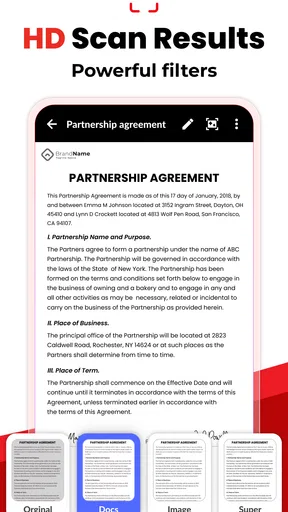
Our Review of Image to PDF - PDF Maker
 Analysis by Appyee
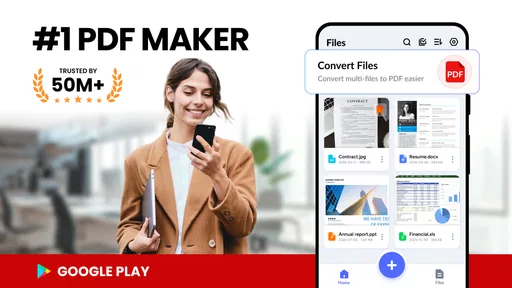
Turning a few phone photos into a document sounds simple until the result needs to be readable, compact, and easy to share. I tested Image to PDF - PDF Maker with that everyday problem in mind, paying particular attention to how comfortably different people can navigate it and how well it fits situations where time, vision, movement, or connectivity may make a task harder. It is a free productivity app from Simple Design Ltd., and its main job is clear: select images, create a PDF, and reduce the file size when the original document is too large to send.
That focused approach is the reason I find it more approachable than many all-purpose document apps. It does not ask me to learn a complete office suite before I can finish a basic conversion. The app has a 4.9 average from around 2.4 million ratings and has passed 50 million installs, so it is clearly familiar to a very large Android audience. Those figures do not replace personal testing, but they do suggest that the straightforward image-to-document workflow has broad appeal.
How Image to PDF - PDF Maker feels in everyday use
I find the app easiest to judge by whether it remains useful after the first quick conversion, not just by how simple it feels on day one. In everyday use, I would treat it as a small, repeatable paperwork tool: prepare a few images, turn them into one file, then check that the result suits the person receiving it. That routine makes the question of long-term value clearer.
Readable navigation without a crowded workspace
The strongest part of the experience is its narrow purpose. When I open a tool designed around images and PDFs, I already understand the likely next step. That matters for people who find complex menus tiring or who prefer to complete one task at a time. Instead of approaching the app as a miniature desktop editor, I treat it as a quick bridge between camera images and a shareable document.
For a person with limited technical confidence, this can remove an unnecessary layer of stress. A typical task might be photographing a signed form, choosing the pictures from the gallery, arranging them in the intended order, and exporting the result. The workflow is easier to understand when the app is not competing with spreadsheets, presentations, cloud storage, and advanced editing tools on the same screen.
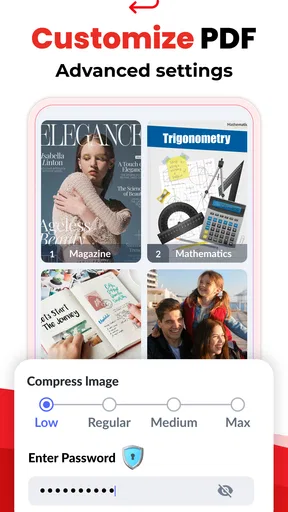
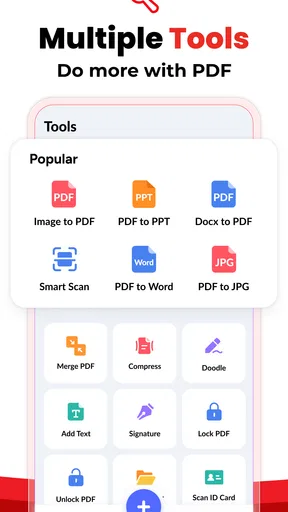
I also like the practical distinction between creating a PDF and compressing it. Those are often treated as separate problems, but they happen together in real life. A document can look fine on a phone and still be awkward to send because the image files are heavy. Having compression support in the same utility means I can think about the recipient’s situation rather than stopping after the first export.
The current release is version 1.7.8, and it supports Android 6.0 or later. That broad operating-system range is useful for households or workplaces that keep older phones in service. It also makes the app a reasonable candidate for a spare device used as a scanner or document station, rather than something reserved for the newest hardware.
Why the simple workflow helps different readers
Readability is not only about font size. It is also about how much information the user must hold in mind. A compact conversion tool can be easier for someone with attention difficulties, temporary fatigue, or limited experience with mobile document software because the goal stays visible: images go in, a PDF comes out.
My advice is to prepare the photos before opening the converter. Rename or group them in the gallery if your phone makes that easy, and remove accidental shots first. This is a small step, but it reduces the amount of sorting required inside the app. For a multi-page receipt, application, or school handout, a clean starting selection is more helpful than relying on last-minute corrections.
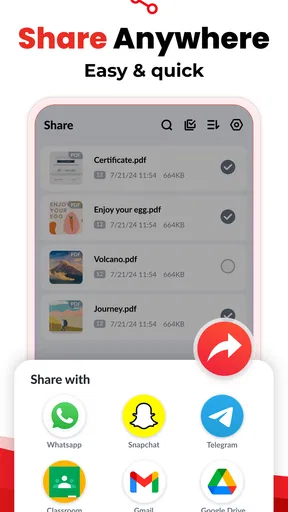
The app is also useful when a person wants a stable document rather than a collection of separate pictures. A PDF keeps related pages together for sharing, printing, or later reference. That can be especially helpful for someone supporting another person remotely: instead of explaining which image belongs to which page, I can send one combined file.
Image order and the hidden importance of preparation
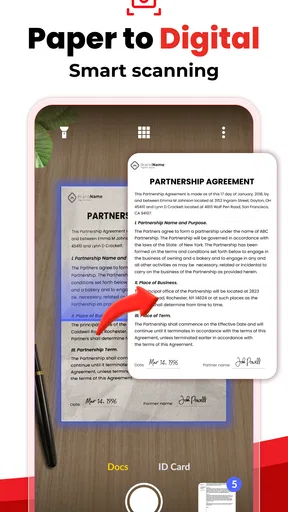
One of the less obvious trade-offs is that conversion quality begins before conversion. If the photographs are taken at different angles, contain shadows, or have text near the edge, the finished PDF may preserve those weaknesses. The app can package images efficiently, but it should not be mistaken for a full document-scanning studio that automatically solves every capture problem.
I get better results by placing papers on a flat, contrasting surface and checking the corners before taking each picture. For people with reduced vision, this preparation can be easier with good room lighting and a short pause between shots. For people with limited hand control, using a stable surface or phone stand can matter more than any setting inside the converter.
When pages are already in the gallery, I recommend checking their order slowly rather than assuming the selection sequence will match the intended document. This is particularly important for forms, invoices, and applications where page order changes meaning. A few seconds of review is much cheaper than sending a confusing PDF and having to rebuild it.
Compression is useful, but smaller is not always better
The compression feature is one of the app’s most practical strengths, especially for people who share documents through messaging services or have limited storage. A smaller file is easier to upload and less likely to create frustration for the recipient. It can also make a difference when someone is working from an older phone with modest free space.
There is a real trade-off, though. Text inside a photograph depends on detail, and aggressive reduction can make small print less comfortable to read. I would use stronger compression for a casual visual reference, such as a set of pictures someone only needs to glance at. For a form, prescription label, receipt, or official page, I would inspect the result at full size before sending it.
This is an important accessibility point: a file that downloads quickly is not automatically a file that everyone can use. A person with low vision may need to zoom in, and fuzzy characters make that harder. My practical workflow is to create the PDF, open it, zoom into the smallest text, and only then decide whether the size reduction went too far.
Motor and sensory considerations in real situations
Image to PDF - PDF Maker can reduce the number of steps needed to finish a document, which is helpful for users who experience hand fatigue or difficulty with repeated navigation. The task still involves selecting images, reviewing pages, and activating controls, so it is not hands-free. Someone with limited dexterity may find the process manageable for a few pages but tiring for a large stack.
For that reason, I would not recommend photographing dozens of pages in one rushed session. Breaking the job into small batches makes mistakes easier to spot and gives the user a chance to rest. If the phone is difficult to hold steady, taking pictures with both hands, resting the device against a stable object, or using a separate camera support can improve the result without demanding extra work from the converter.
Sensory comfort also depends on the surrounding environment. A bright screen, glare on glossy paper, or a noisy public place can make image selection and review more difficult. I find that checking the final PDF in a quiet, evenly lit setting is worthwhile, especially when the document contains small characters or low-contrast print.
The app’s Everyone content rating makes it suitable for a broad audience from a store-category perspective, but that does not mean every individual will find the interaction equally comfortable. People who rely on a particular screen reader, enlarged interface, switch control, or voice workflow should test the actual controls on their own phone. The most honest recommendation I can give is to try a short, low-stakes conversion first rather than committing an important document to an unfamiliar interface.
A realistic everyday scenario: sending a signed form
Imagine receiving a paper form that must be returned by email or messaging. I would first place the form on a table, capture each page carefully, and inspect the photos for cut-off signatures or missing corners. Then I would select only those images, convert them into one PDF, and use compression if the first file is inconvenient to share.
The accessibility benefit here is not a special mode; it is the reduction of scattered steps. The recipient gets one file, the sender does not need to describe a sequence of separate pictures, and the document can be reviewed page by page before it leaves the phone. If the signer has difficulty reading the final copy, zooming into the PDF before sending can reveal whether the signature and small fields survived the conversion clearly.
For a person helping an older relative, this workflow can also make remote support more practical. The helper can explain one action at a time: choose the photos, check the order, create the PDF, and inspect the result. That is easier to communicate than instructions covering a full office application with many unrelated tools.
Situational access: where the app earns its place
This is a particularly sensible utility for students, renters, small business owners, caregivers, and anyone who handles paper while away from a computer. A phone is usually already nearby, and the app turns existing images into a format that feels more organized than a camera roll. It is also useful for archiving household paperwork when the goal is simply to keep several pages together.
People working with inconsistent internet access may appreciate completing the basic conversion on the device rather than depending on a browser-based service. I still would not assume every part of the experience is independent of connectivity without testing the exact workflow on the phone in question. If the document is sensitive, an on-device approach may also feel preferable to uploading images elsewhere, although users should make their own privacy decision and avoid treating convenience as a guarantee of confidentiality.
The free price lowers the barrier to trying it. In-app purchases cost $1.99 per item, so anyone who wants to avoid unexpected spending should pay attention to the purchase prompts and decide whether the free workflow is enough. For occasional conversions, I would start without paying and judge the result on the types of documents I actually handle.
Where another tool may be the better choice
This app is not my first choice when I need searchable text, editable paragraphs, automatic form recognition, or detailed page correction. A dedicated scanning application or office suite may be better for those jobs because conversion alone does not turn photographed text into a fully editable document. Likewise, if the original material is already a digital document, exporting directly from the source app will usually preserve cleaner text than photographing a screen or printed page.
I would also choose a more specialized tool for a long archive that needs consistent naming, folders, annotations, signatures, or advanced cloud organization. Image to PDF - PDF Maker is strongest when the task is immediate and concrete: images are available, a PDF is needed, and optional compression can make sharing easier.
Another limitation is the quality ceiling imposed by the camera images. A badly lit page, a folded receipt, or a photograph with motion blur remains a weak source. Users expecting the converter to repair every visual problem may be disappointed. The app saves time after capture; it does not remove the need for careful capture.
Remaining barriers worth considering
The biggest barrier is that the user still has to judge whether the output is usable. Someone with reduced vision may need help confirming that tiny print, pale marks, or handwritten details are visible. Someone with limited dexterity may need a stable setup for taking the photos. Someone under time pressure may be tempted to send the first export without checking page order or compression.
There is also a difference between making a PDF and making an accessible document. A PDF made from images may behave like a set of pictures rather than selectable, searchable text. That matters for people who depend on text-to-speech, text reflow, or quick searching. If another person needs to read the document through assistive technology, I would ask whether an OCR-based alternative or the original digital file is available instead.
These are not reasons to dismiss the app; they define its proper role. It is a practical image container and size-reduction tool, not a complete accessibility remediation system. Understanding that boundary prevents disappointment and helps users choose the right workflow for the person who will receive the file.
Who should use it, and who should skip it?
I would recommend it to anyone who regularly needs to combine phone photos into a PDF without learning a large document suite. It suits quick submissions, household records, classroom materials, receipts, and short bundles of paperwork. It is especially appealing when a smaller file is useful and when the user values a focused interface over a long list of professional features.
I would suggest skipping it, or pairing it with another tool, if searchable text, formal document accessibility, detailed annotation, or high-end scanning correction is central to the job. People who need a fully voice-driven workflow should also test it personally before relying on it, because a simple visual layout does not automatically guarantee comfortable support for every assistive setup.
The app comes from Simple Design Ltd. and has been available since December 8, 2020. Its mature presence and broad device support make it easy to consider for an older Android phone, while the free entry point makes experimentation low-risk. The right expectation is modest but useful: this is a focused converter, not a replacement for every document tool.
My inclusive verdict
After using Image to PDF - PDF Maker, I see its value in the small moments when paperwork becomes inconvenient. It gives me a direct route from selected images to a combined PDF and adds compression when sharing or storage becomes a problem. That simplicity can support people with different levels of technical confidence, different devices, and different amounts of time.
Its inclusive strengths come from focus and flexibility rather than from claims about specialized accessibility features. I can prepare images carefully, work in short batches, inspect the final file, and choose whether compression is appropriate. Those habits make the result more dependable for both the sender and the reader.
My final recommendation is positive for straightforward image-based documents, with one condition: always review the finished PDF before sending it. Check page order, small text, signatures, and the effect of compression. If the recipient needs searchable or assistive-technology-friendly text, choose a more advanced scanning or OCR workflow instead. For everyone else who wants a free, uncomplicated way to turn phone images into a shareable PDF, this app is a sensible tool to keep available.
Verdict
Strengths of Image to PDF - PDF Maker
- Converts multiple images into a single PDF quickly.
- Supports common image formats, including JPG and PNG.
- Lets you reorder images before creating the PDF.
- Useful for scanning notes, receipts, and documents on the go.
- Simple interface suitable for users with limited technical experience.
Limitations of Image to PDF - PDF Maker
- Free features may include ads or usage limitations.
- Advanced editing and customization options are limited.
- Large image batches can produce sizeable PDF files.
- Output quality may vary depending on the source images.
- Privacy depends on how the app handles uploaded or processed files.
Other Releases by Simple Design Ltd.
View All
Video Downloader - Downloader
Video Players & Editors4.7

Fonts Keyboard Themes & Emoji
Personalization4.7

Document Reader - PDF Editor
Productivity4.7

PDF Reader - PDF Editor
Productivity4.6
Similar Picks in This Category
View All
Google Calendar
Google LLC4.6

Google Drive
Google LLC4.3

Google Assistant
Google LLC3.9

Microsoft OneDrive
Microsoft Corporation4.6

Samsung Calendar
Samsung Electronics Co., Ltd.4.1

Microsoft OneNote: Save Notes
Microsoft Corporation4.6
Frequently Asked Questions
What is Image to PDF - PDF Maker used for?
Image to PDF - PDF Maker is designed to convert pictures into PDF documents directly from a mobile device. After selecting images from the gallery or taking new photos, you can arrange their order and create a single PDF file. It can be useful for scanning notes, receipts, forms, assignments, documents, and other image-based content without needing a computer.
How do I convert images into a PDF with the app?
To create a PDF, open the app and import one or more images from your device, or capture documents using the camera if that option is available. Review the selected pages, change their order, crop or adjust them when necessary, and then choose the PDF creation option. The finished file can usually be saved locally or shared through another application.
Does Image to PDF - PDF Maker work offline?
Basic image-to-PDF conversion generally works without an internet connection because the files are processed on the device. This makes the app convenient when traveling or working with private documents away from Wi-Fi. However, features such as cloud storage, online sharing, advertisements, account services, or optional document tools may require internet access depending on the version installed.
Can I combine several images into one PDF file?
Yes, the app is intended to combine multiple images into a single PDF document. You can select several pictures, arrange them in the desired page sequence, and export them together rather than creating separate files one by one. Before saving, it is worth checking the page order, image orientation, and readability, especially when scanning multi-page documents.
Is Image to PDF - PDF Maker safe for private documents?
The app may be suitable for everyday documents, but users should review its permissions and privacy policy before importing sensitive material such as identification cards, financial records, or medical files. Prefer processing files locally, avoid unnecessary account connections, and share exported PDFs only through trusted services. Also check whether the installed version includes advertisements, analytics, or cloud-upload features.
